
How to Access
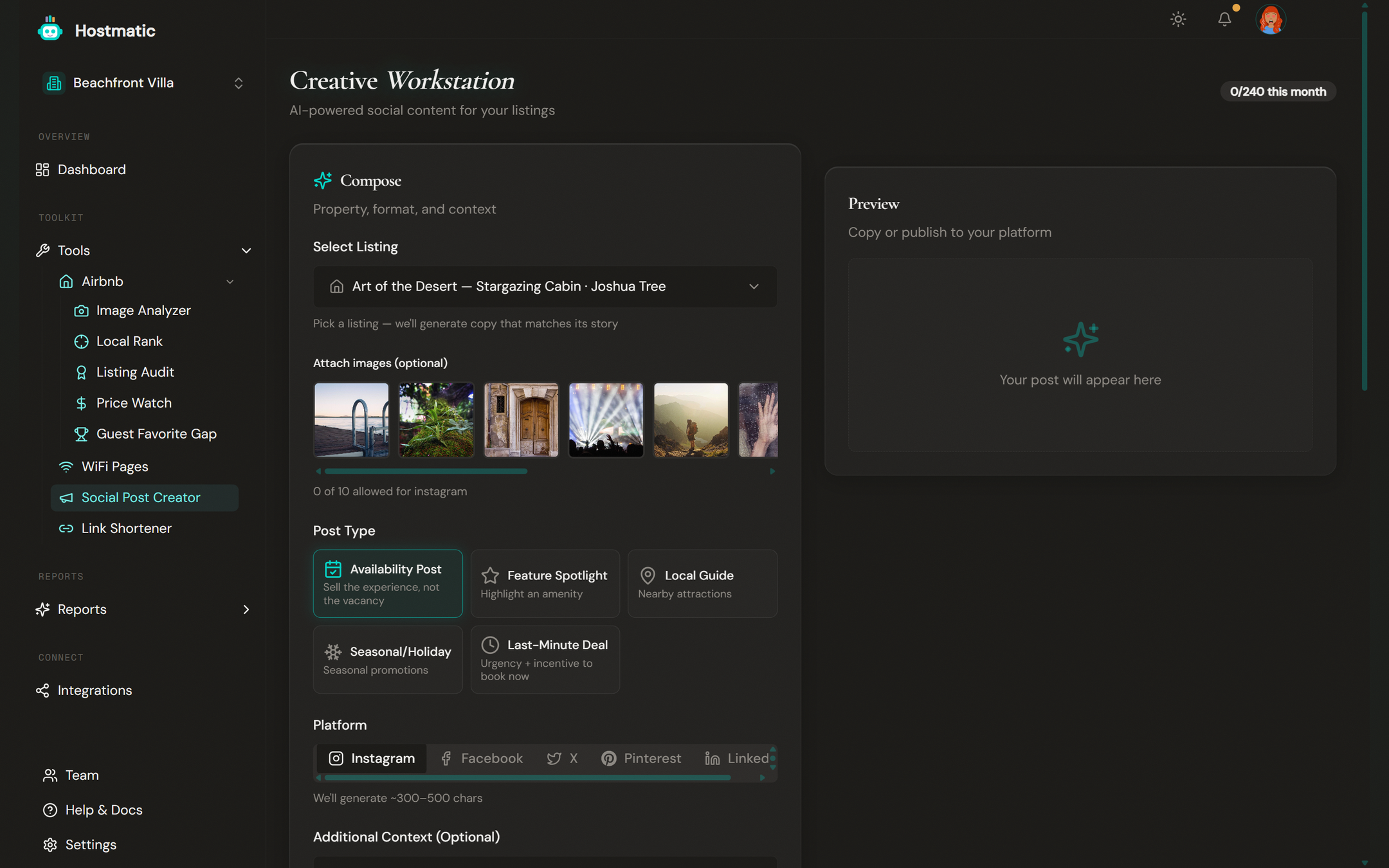
- In the sidebar, click Tools to expand the menu.
- Click Social Post Creator.
Your monthly post-generation usage is shown as a badge in the top-right (e.g. "3 / 60 posts this month"). Monthly generation allowances are 12 on Free, 60 on Weekend Host, and 240 on Pro Host.
Step-by-Step: Generate a Post
1. Select a Listing
In the Property / Listing dropdown, choose the property you want to promote. Connected Airbnb listings and direct booking properties appear in the list.
To post about a listing you haven't saved yet, click Add a new listing… and enter its Airbnb Listing ID or URL.
2. Choose a Post Type
Pick one of five angles:
- Availability Post — Sell the experience, not the vacancy.
- Feature Spotlight — Highlight an amenity. A Feature to Highlight field appears when selected.
- Local Guide — Nearby attractions. Requires Weekend Host or higher.
- Seasonal / Holiday — Tie your listing to the time of year.
- Last-Minute Deal — Urgency + incentive to book now.
3. Pick a Platform
Five tabs cover the supported networks. Each has its own character cap and recommended length:
| Platform | Hard cap | Recommended length |
|---|---|---|
| 2,200 | 300–500 chars | |
| 5,000 | 250–400 chars | |
| X (Twitter) | 280 | 200–270 chars |
| 500 | 300–450 chars (search-keyword style) | |
| 3,000 | 500–800 chars |
The character counter under the preview turns red if a generated post exceeds the cap — the generator now retries automatically and truncates at a sentence boundary as a last resort, so over-cap copy almost never reaches you.
4. Hashtags
Hashtag count is platform-driven, not plan-driven. We use what actually works on each network:
- Instagram — 12 hashtags (8–15 is the engagement sweet spot)
- Facebook — 2 (more than this hurts FB reach)
- X — 2 (limited room in 280 chars)
- Pinterest — 4 (Pinterest deprecated hashtag-follow in 2024 — keyword-rich descriptions matter more)
- LinkedIn — 5
5. Add Context (Optional)
Use the Additional Context box to tell the AI anything specific — "mention the new rooftop deck", "focus on family-friendly activities", or paste an event the guest could attend.
6. Generate
Click Generate Post. The AI builds the post copy, hashtags, and (optionally) a tracked short link.
Publishing Directly
Requires Weekend Host or higher.
After generating, click Publish to Social Media to push the post straight to your connected accounts. The dialog will:
- Highlight the platform badge matching the post you generated.
- Show all your connected accounts with the matching one pre-suggested.
- Warn if the platform requires media (Instagram and Pinterest require an image).
- Show your monthly publish allowance and credit balance.
| Plan | Connected accounts | Monthly publishes |
|---|---|---|
| Free | 0 (generation only) | — |
| Weekend Host | 2 | 30 |
| Pro Host | 5 | 120 |
Once you exceed your monthly publish allowance, each additional publish costs 1 credit.
Inactivity Policy
Connected accounts auto-disconnect after 90 days of no publishing. This keeps your seat count lean (we're billed per connected account by our publishing provider). Just publish once before then and the account stays active. Reconnecting takes ~30 seconds and your post history is preserved.
Your Generated Post
The right column displays:
- Post text — the full generated content
- Character counter — green ✓ when under the cap, red when over
- Hashtags — listed below the post
- Listing Link — if "Auto-create tracking link" was on, the shortened hmatic.io link is included in the copy
- Copy Post / Copy with Hashtags buttons
Post History
The Recent Posts table at the bottom shows every post you've generated, with its platform, type, character count, and a quick Copy or Publish action.
Tip: Rotate post types so your social feeds stay varied. Mixing Availability with Local Guide and Feature Spotlight posts keeps your audience engaged without sounding like a vacancy notice every week.