
How to Access
- In the sidebar, click Tools to expand the menu
- Click Airbnb
- On the Airbnb tools hub page, select Listing Audit
What an Audit Includes
Every audit produces:
- Overall Booking Health Score (0–100, color-coded green / yellow / red) shown in a large score ring at the top
- Section sub-scores for Photos, Position, Reviews, Completeness, and Pricing
- Quick Wins — a prioritized, clickable list of the highest-impact issues with concrete suggestions (e.g. "Add 'beachfront' to the title — it's the top-searched term in your market")
- Per-section notes explaining what was scored well, what was scored down, and why
The Quick Wins panel is surfaced first in the report so you don't have to scroll. Each row is clickable and jumps to the relevant section detail.
Step-by-Step: Run an Audit
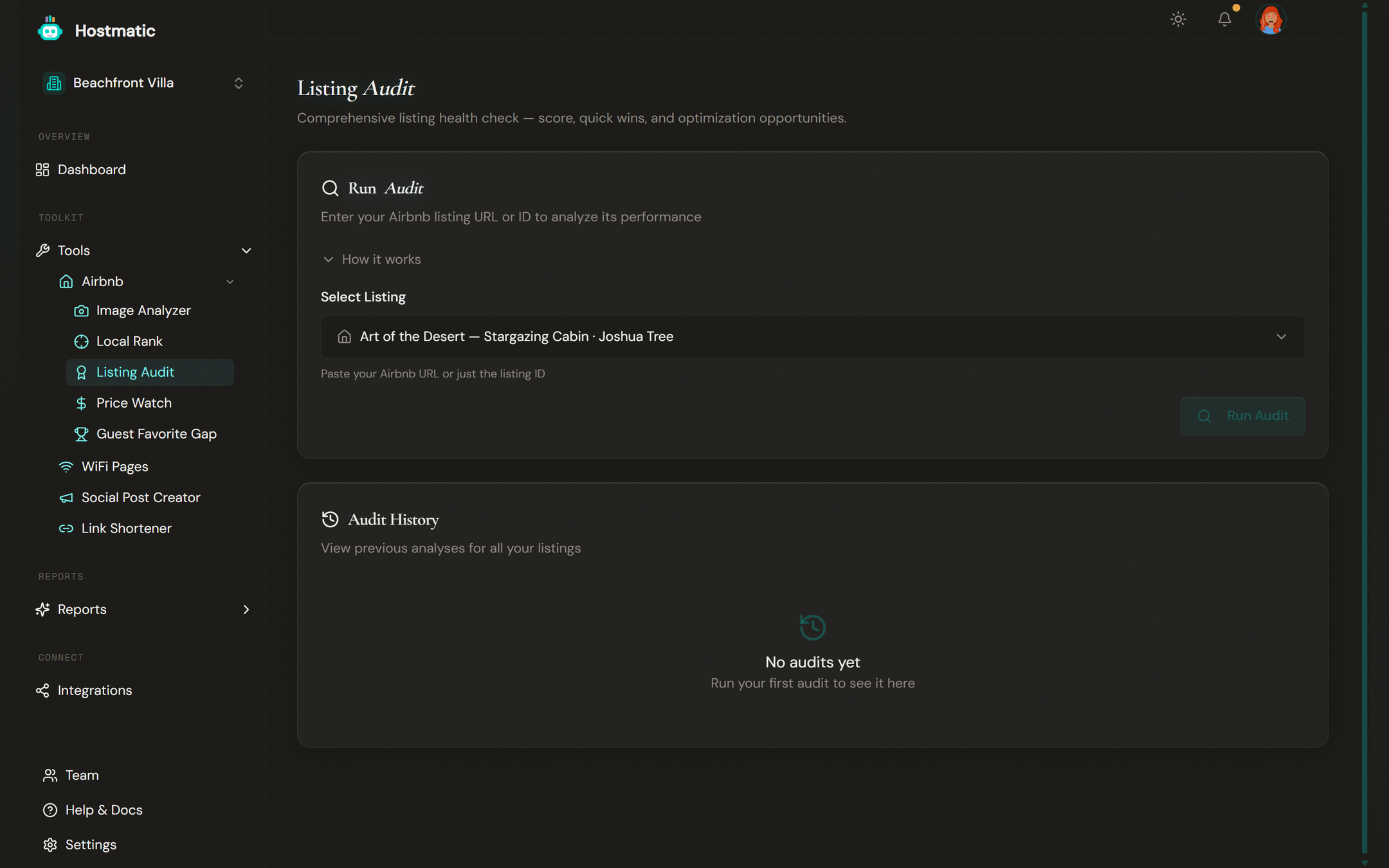
1. Choose a Listing
Pick a connected Airbnb listing from the dropdown. To audit a listing you haven't saved yet, click Add a new listing… and enter its Airbnb Listing ID or URL.
2. Start the Audit
Click Run Audit. The two-stage loading card shows progress: first scraping the listing, then running the AI analysis. A typical audit takes 30–60 seconds.
3. Review the Report
When the run completes you land on the detail page (/tools/airbnb/audit/[listingId]). You'll see the score ring, Quick Wins, and a card per section. Use the View Full Report button on past runs in the history table to come back to any report later.
Credits
| Operation | Credits |
|---|---|
| Fresh audit | 10 |
| Audit reusing an Image Analyzer scan from the last 7 days | 5 |
The "reuses recent image scan" discount kicks in automatically — if you ran the Image Analyzer on the same listing within the last 7 days, the audit borrows that photo analysis instead of paying for it twice.
Tip: Run the Image Analyzer first when you're auditing a listing for the first time. You'll get richer photo feedback and the follow-up audit costs half as much.
History and Past Runs
The history table at the bottom of the landing page lists every audit you've run, with:
- Listing name (uses your custom name if set, otherwise the cleaned Airbnb title)
- Date of the run
- Overall score
- Optional scan note — editable inline; useful for tagging context like "after photo refresh"
- View Full Report to reopen the report
- Rescan to run a fresh audit on the same listing (defaults to the prior run's settings)
A date-range filter on the table is capped by plan: Free 90 days, Weekend 180 days, Pro 1 year.
Public Audit (Free Trial)
Anyone — including people without a Hostmatic account — can paste an Airbnb URL on the public audit page and see a real audit summary, not a teaser. The full per-section detail and Quick Wins unlock with an email reveal, which drops the prospect into the welcome flow.
If you're a host who wants to share your audit results, the result page generates a clean, OG-card-ready public link you can post on social or send to a co-host.
How to Use Audit Results
- Start with Quick Wins, top to bottom. They're ordered by estimated booking impact.
- Fix one section at a time. Title and photos move the needle the fastest — pricing and amenities are second-tier.
- Update Airbnb, then rescan. Click Rescan on the history row to see your new score the same day.
- Use scan notes to track changes. A note like "raised price to $185" makes the trend chart actually meaningful three months from now.
Common Questions
- Audit says "not enough data" for photos — Likely no photos scraped successfully. Run the Image Analyzer separately on the same listing, then run a fresh audit (it'll reuse those scan results).
- Score went down after I made changes — Check the per-section notes; the audit may be flagging something you didn't realize changed (e.g. an amenity removed from the listing).
- Can I audit a listing I don't own? — Yes. The Listing Audit works on any public Airbnb URL.