
What Hostmatic Tracks
Core Metrics
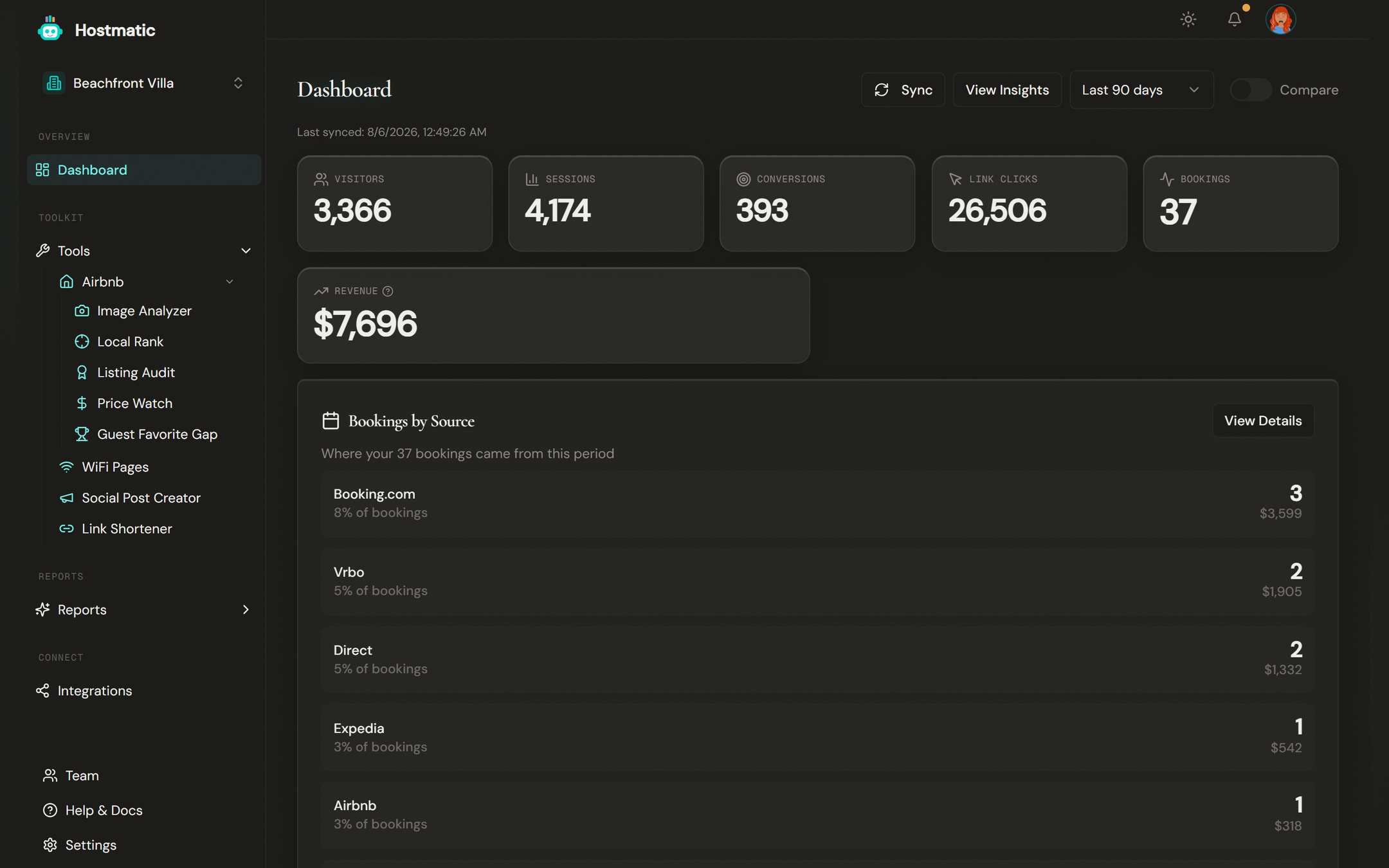
Your dashboard displays seven key metrics at a glance:
| Metric | What It Measures | Data Source |
|---|---|---|
| Visitors | Unique visitors to your direct booking site | Google Analytics |
| Sessions | Total browsing sessions | Google Analytics |
| Conversions | Completed booking events | Google Analytics events |
| Link Clicks | Clicks on your shortened tracking links | Hostmatic link tracker |
| Bookings | Confirmed reservations | Guesty / Airbnb calendars |
| Revenue | Total booking revenue | Guesty PMS |
| Top Traffic Source | Your highest-performing referral source | Google Analytics |
Additional Data Points
- Blog performance — Views, visitors, and conversions from your blog content
- Traffic sources — Breakdown of where your visitors come from (organic, social, direct, referral)
- Key events — Conversion events by type, sorted by volume
- AI-generated insights — Automated observations about trends and anomalies
How Data Flows Into Hostmatic
- Google Analytics — Connect your GA4 property via OAuth. Hostmatic syncs visitor, session, conversion, and traffic source data. Use the sync button on your dashboard to pull the latest data.
- Airbnb Calendars — Add your iCal export URLs. Hostmatic reads booking dates to track occupancy and reservation counts.
- Guesty — Connect your Guesty account via API key. This unlocks revenue data, booking details, and property-level analytics.
- Link Tracker — Every shortened link you create automatically tracks clicks, unique visitors, devices, locations, and referrers.
- Social Accounts — Connect your social accounts to publish posts directly to Instagram, Facebook, X, Pinterest, and LinkedIn. Organic social performance is tracked via Google Analytics. Paid social ad reporting comes from the separate Ad Accounts connector.
Date Ranges and Comparison
Every report supports date range filtering:
- Last 7 days — Quick snapshot of recent activity
- Last 14 days — Two-week trend view
- Last 30 days — Monthly performance
- Last 90 days — Quarterly trends
- 180 days (Weekend Host) / 1 year (Pro Host) — Longer ranges for trend and seasonal analysis
Tip: Period-over-period comparison (current vs prior period side-by-side) is a Pro Host feature. Look for the comparison toggle next to the date range selector.
Understanding Your Data
Percentage Changes
Green arrows (up) and red arrows (down) next to metrics show the change compared to the previous period. A green arrow on visitors means more people visited your site compared to the same number of days prior.
Data Freshness
Your dashboard shows a "Last synced" timestamp. If data looks stale, click the sync button to pull the latest from Google Analytics. Syncing typically takes a few seconds.
Property Context
If you manage multiple properties, use the property switcher in the sidebar to view data for a specific property. All metrics, charts, and insights update to reflect the selected property.
Next Steps
- Connect Google Analytics to start tracking visitors
- Create your first tracking link to measure marketing performance
- Explore your dashboard to understand each section
- Map the Reports section to figure out which page answers your current question