
How to Access
Click Dashboard at the top of the sidebar. This is the first page you see after logging in.
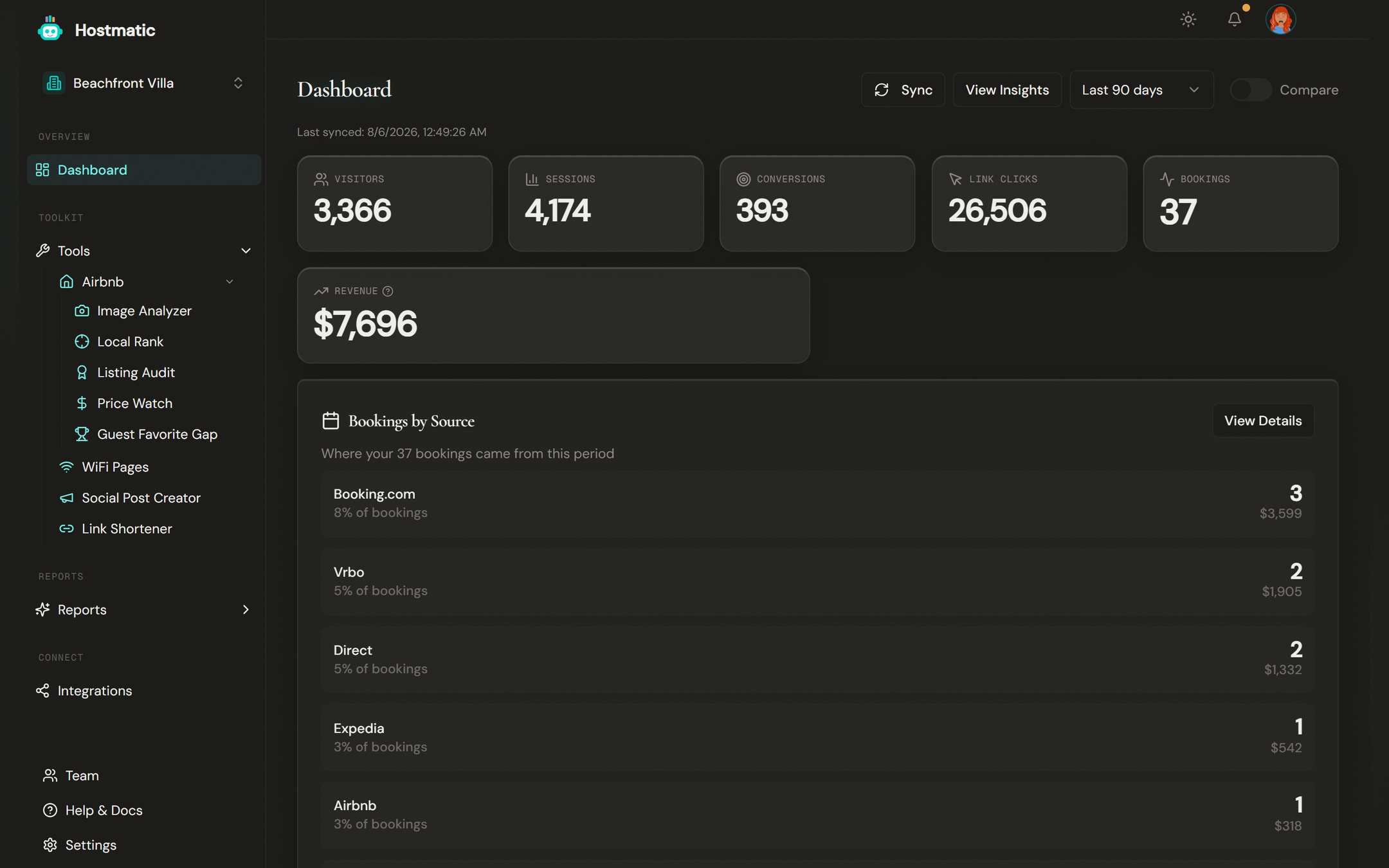
Metric Cards
Five primary metric cards appear at the top of your dashboard:
| Card | What It Shows |
|---|---|
| Visitors | Unique visitors to your website, with percentage change vs. prior period |
| Sessions | Total browsing sessions, with percentage change |
| Conversions | Completed conversion events (bookings, inquiries), with conversion rate |
| Link Clicks | Total clicks on your Hostmatic shortened links |
| Bookings | Confirmed reservations, with booking conversion rate |
Two additional cards appear below:
- Revenue — Total booking revenue from your connected PMS (Guesty). Hover the tooltip icon to see the data source.
- Top Traffic Source — Your highest-performing referral channel (e.g., google, instagram, direct).
Green up-arrows mean improvement over the previous period. Red down-arrows mean a decline.
Date Range and Comparison
In the top-right corner of the dashboard, you'll find:
- Date range dropdown — Click to switch between Last 7 days, Last 14 days, Last 30 days, or Last 90 days
- Comparison toggle — Click the switch next to the date range to overlay the previous equivalent period on your charts. (Comparison may require a paid plan.)
Sync Button
To the left of the date range, click the Sync button (circular arrow icon) to pull the latest data from Google Analytics. A "Last synced" timestamp shows when data was last updated.
Tip: If you've just made changes to your GA4 property or website, allow a few minutes for data to propagate before syncing.
Visitor Chart
Below the metric cards, the main chart shows visitors over your selected date range as a line graph. Hover over any point to see the exact count for that day.
When comparison is enabled, a second line appears showing the previous period. This makes it easy to spot trends at a glance.
Traffic Sources
Below the chart, a ranked breakdown shows your top traffic sources by volume. This tells you where visitors come from — organic search, social media, direct visits, email campaigns, or referral links.
Blog Performance Card
If you've configured a blog URL pattern (via Integrations → Direct Booking Website), a dedicated card shows:
- Views — Total blog page views
- Visitors — Unique blog visitors
- Conversion Rate — Percentage of blog visitors who convert
- Conversions — Total conversions attributed to blog content
Key Events Breakdown
A summary of your conversion events grouped by type and sorted by volume. This helps you understand which actions visitors take most — booking inquiries, completed purchases, form submissions, etc.
AI Insights Panel
At the bottom of the dashboard, a compact panel shows up to three AI-generated insights. These highlight trends, anomalies, or opportunities in your data. Click through to see the full list on the AI Insights page (under Reports in the sidebar).
Property Switcher
If you manage multiple properties, use the property dropdown in the sidebar to switch between them. All dashboard metrics, charts, and insights update to reflect the selected property. Free plans have 1 property; Weekend Host has 2; Pro Host has 5.
Recent Activity
Below the AI Insights panel, the Recent Activity card lists your latest tool runs across Image Analyzer, Local Rank, Listing Audit, and Price Watch. Each row links straight to the relevant tool page with the listing pre-loaded, so you can jump back into a deep-dive in one click.