
WiFi Pages is a list of branded guest landing pages. Create one per network with New Page. Each page gets its own link and QR code.
How to Access
- In the sidebar, click Tools to expand the menu
- Click WiFi Pages
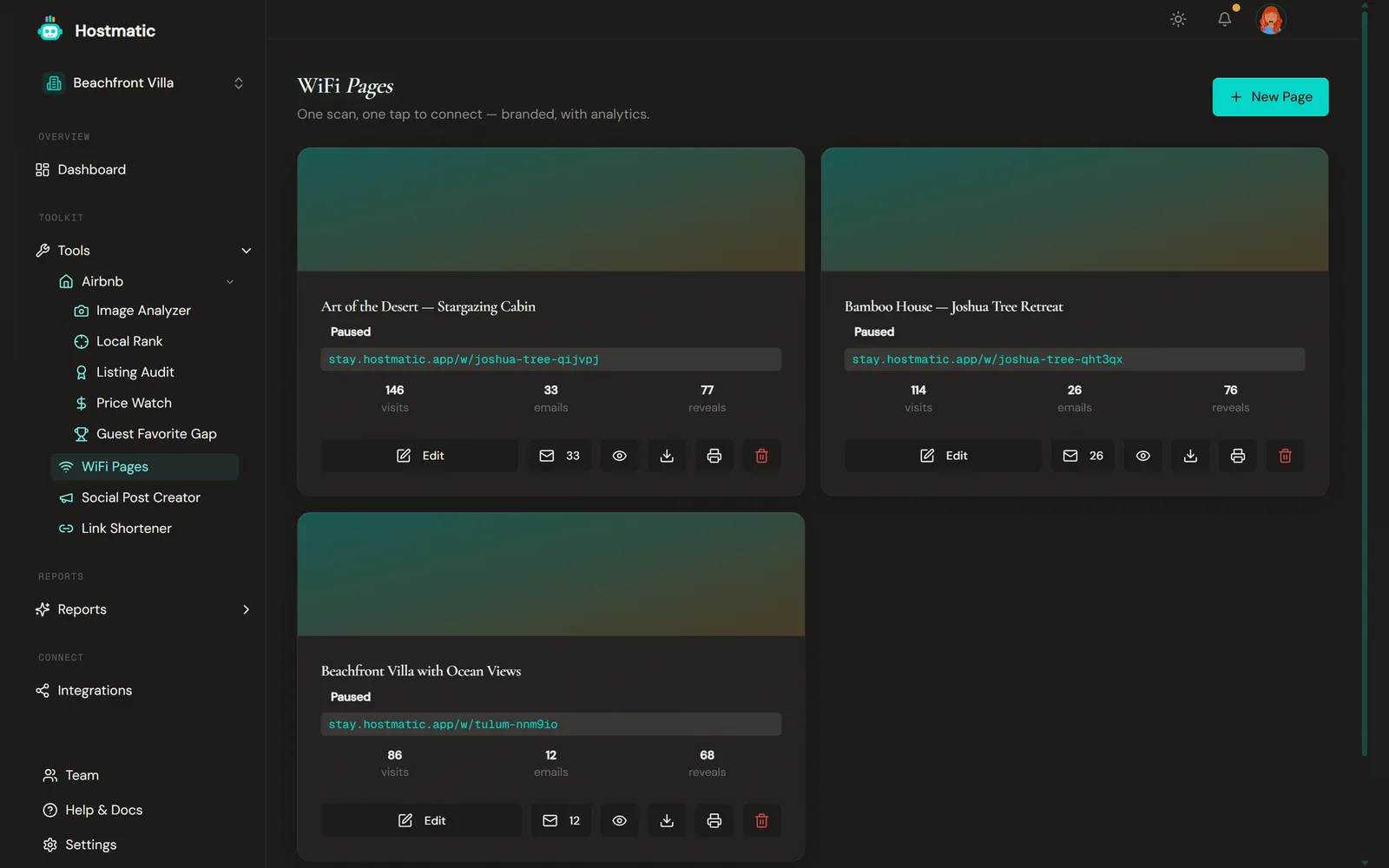
- You'll see a list of page cards with options to create, edit, and manage each page
Click New Page (top right), or Create your first page if the list is empty, to open the editor. Only editors and above can create, edit or delete pages — everyone else sees "Only editors and above can do this."
Click the Edit button on any card to configure that page's settings, email capture, upsells, and branding.
Creating a Page
The editor is split into sections:
- Property Info — Property Name (required, 100 characters), Cover Photo, and Welcome Message (Pro Host, 280 characters)
- WiFi Credentials — Network Name (SSID) (64 characters), Encryption Type (WPA/WPA2, WEP (Legacy), or Open Network), Password (hidden for an open network), and Hidden network (SSID not broadcast)
- QR Code Settings — QR Code Style (only "Classic" is supported) and QR Code Size (128–1024 px)
- Status — Active or Paused. A paused page returns "not found" to guests.
The save button reads Create Page on a new page and Save Changes afterwards.
Each card on the list shows the guest link (stay.hostmatic.app/w/{slug}) and an Active or Paused badge. The eye icon opens the live guest page. The trash icon deletes the page after a confirmation — that can't be undone.
What the Page Does for Guests
The mobile-optimized page:
- Shows your network name and password in a large format, with a Copy password button
- Gives the guest a Connect to WiFi button (and Show WiFi first, if email capture is on)
- On Android — tapping Connect to WiFi copies the password and, in Chrome, opens Wi-Fi settings so the guest can paste it
- On iOS — tapping Connect to WiFi copies the password and points the guest to the on-page QR code, which they scan with the Camera app to join
- Includes a Wi-Fi QR code on the page. Android guests can long-press it and use Google Lens; iPhone guests scan it with the Camera app.
This eliminates the most common guest question of every stay: "What's the WiFi password?"
Optional Features
The WiFi page has three optional capabilities you turn on from the page editor.
Email Capture *(Weekend Host or higher)*
Ask the guest for their email before revealing the password. Build a list of past guests for repeat-stay marketing, post-stay reviews, and direct-booking nurture.
Turning on Require guest email to reveal WiFi password hides the password until the guest submits an email. The only text you can edit is the Consent Text shown above the email field (up to 280 characters). It defaults to "By continuing you agree to receive occasional updates from your host."
Captured emails appear on the page's Guest Leads screen (the mail icon on the card) and can be exported to CSV.
Upsell Cards *(Weekend Host or higher)*
Add up to 3 cards on the WiFi page that promote nearby restaurants, tours, your own services, late checkout, or anything you want guests to discover the moment they connect.
Each card has:
- A Type — Late Checkout, Local Recommendation, Rebook Direct, or Custom
- A title (60 characters) and description (240 characters)
- A CTA Label (24 characters) and CTA Link — public http(s) links only
Links are converted to tracked Hostmatic short links automatically. Upsell cards only appear after the password is revealed. Rebook Direct cards stay hidden until you tick the Airbnb terms acknowledgment, and Custom cards show a terms-of-service warning.
White-Label *(Pro Host)*
Hide the "Powered by Hostmatic" footer with the Show Hostmatic branding switch, and style the page yourself. You can set:
- Theme — Dark or Light
- Font — Classic, Modern, or Editorial
- Accent Color (Hex)
- Title Color (Hex, optional)
- Welcome Message (280 characters)
Useful for property managers running multiple properties under a single business name.
Page Limits per Plan
The number of pages you can run depends on your plan:
| Plan | WiFi pages |
|---|---|
| Free | 1 |
| Weekend Host | 3 |
| Pro Host | Unlimited |
During the 7-day Weekend Host trial you get 3 pages plus email capture and upsells.
Analytics
Each WiFi page on the list card displays:
- Visits — page views, counted once per device per hour
- Emails — unique emails captured
- Reveals — times a guest unlocked the password by submitting their email. Pages without email capture open already revealed, so this stays at 0.
These three counts are the page's full analytics; there is no separate report.
Leads & Export *(Weekend Host or higher)*
Each page card has a mail-icon button showing its email count. Click it to open Guest Leads, which lists each captured email under three columns: Email, Captured and Opt-In. The header shows the total as "{page} — N captured emails".
Click Export CSV to download wifi-leads-{page-id}-{YYYY-MM-DD}.csv, with the columns Email, Captured Date, Marketing Opt-In and Property — ready for email marketing, CRM, or direct-booking campaigns.
Print *(All plans)*
Generate a printable QR sheet for your guests.
- From the WiFi Pages list, find the page card you want to print
- Click the printer icon (Print QR code sheet) on the card
- A new tab opens with a sheet showing two codes: WiFi Network (scan to join, no internet needed) and Guest Guide (opens your WiFi page), plus the network name, password and security type in text
- Click Print QR Codes
Post the sheet in your entry area, bedroom, or guest guide.
The Download WiFi QR code button on the card saves a 512 px PNG (wifi-{slug}.png). That code opens your WiFi page — it isn't a Wi-Fi-config code.
Common Questions
- Can guests scan without internet? — Use the printed sheet's WiFi Network code: it joins the network directly with no internet. The Guest Guide code and the code from the card's download button open your WiFi page, so they need mobile data.
- Why don't I see email capture or upsell options? — They appear greyed out with "(requires upgrade)" on Free. Upgrade to Weekend Host or higher from the pricing page.
- Can I change the WiFi password later? — Yes. Click Edit, update the password, and save. Your page link doesn't change, so printed page QR codes keep working and show the new password. Reprint the QR sheet, because its WiFi Network code contains the old password.
- What if the guest's phone blocks Wi-Fi-config QRs? — The page still displays the password as text that the guest can copy manually. On email-gated pages, the password shows once the guest submits their email.