
How to Access
Click Settings at the bottom of the sidebar.
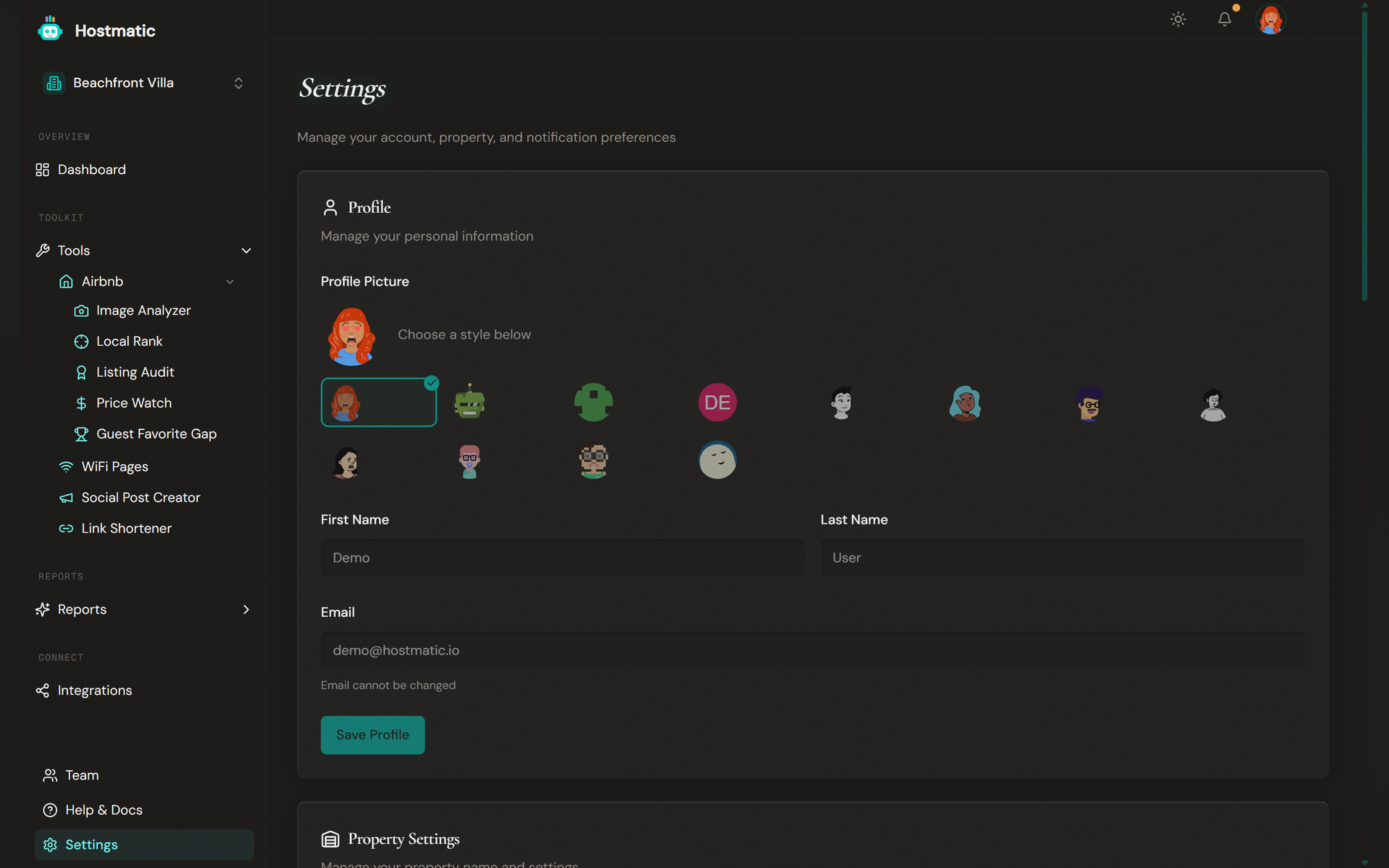
Profile Card
The Profile card (with a user icon) lets you update your personal information.
- Profile Picture — Choose from 12+ avatar styles (Avataaars, Robots, Identicon, Initials, Lorelei, Micah, Mini Avatars, Notionists, Open Peeps, Personas, Pixel Art, Thumbs). Click a style to preview it.
- First Name — Enter your first name in the text field
- Last Name — Enter your last name in the text field
- Email — Shown but cannot be edited ("Email cannot be changed" appears below).
- Click Save Profile to save your changes
Property Settings Card
(Only shown if you have a property configured.)
The Property Settings card (with a warehouse icon) lets you rename your property.
- Enter the property name in the Property Name field (max 100 characters)
- The helper text reads: "This is how your property appears in the property switcher"
- Click Save Property Name
Timezone Card
The Timezone card (with a globe icon) sets your reporting timezone.
- Open the Timezone dropdown ("Select timezone")
- Choose from options including: Eastern Time (ET), Central Time (CT), Mountain Time (MT), Pacific Time (PT), Alaska Time (AKT), Hawaii Time (HT), London (GMT/BST), Paris (CET/CEST), Berlin (CET/CEST), Tokyo (JST), Shanghai (CST), Dubai (GST), Sydney (AEST/AEDT), Perth (AWST), UTC
- Click Save Timezone
Default Date Range Card
The Default Date Range card (with a bar chart icon) sets the initial view for your analytics.
- Open the Default Range dropdown ("Select default date range")
- Choose: Last 7 days, Last 14 days, Last 30 days, Last 90 days, Last 6 months, or Last year
- The helper text reads: "This will be used as the default when viewing analytics"
- Click Save Date Range
Change Password Card
The Change Password card (with a lock icon) lets you update your password.
- Enter your current password in the Current Password field
- Enter your new password in the New Password field (minimum 6 characters)
- Re-enter it in the Confirm New Password field
- Click Change Password (shows "Changing..." while processing)
You'll be re-authenticated before the change takes effect.
Integrations
To manage all your connected services (Google Analytics, Guesty, Airbnb, Social Accounts, and others), visit the Integrations page. Click the Go to Integrations button or use the Connect link in the sidebar. There you can connect new integrations, view account details, and disconnect services you no longer use.
Tip: Disconnecting stops data sync but doesn't delete previously synced data. If a connection stops working (expired token, changed credentials), disconnect and reconnect it.
Credits and Billing
To manage credit packs and subscriptions, use these pages in the sidebar (not on the Settings page):
- Credits — Buy credit packs, view your balance, see purchase history, and review usage history for the Airbnb tools.
- Pricing — Change your subscription plan. Prorated, takes effect immediately.
- Manage Subscription — From the Pricing page, the Manage Subscription button opens the Stripe customer portal where you can update card details, view invoices, or cancel.
Email Verification
If you signed up but haven't clicked the verification link in your welcome email, you'll see a verify-email banner across the app. Click Resend in the banner (or from the Profile card above) to receive a fresh link. Onboarding nudges are suppressed while your account is unverified.