
What Gets Synced
With Guesty connected, Hostmatic pulls:
- Revenue data — Total revenue, revenue per booking, and ADR (average daily rate)
- Booking details — Check-in/out dates, guest count, booking source
- Platform attribution — Which OTA each booking came from (Airbnb, VRBO, Booking.com, direct)
- Property data — Listing details, amenities, and configuration
- Occupancy — Calendar fill rates and availability
Why Connect Guesty
Guesty is one of the two most data-rich integrations available (alongside OwnerRez). It unlocks features that aren't possible with calendar-only connections:
| Feature | With Guesty | Without Guesty |
|---|---|---|
| Revenue tracking | Full revenue data | Not available |
| Platform attribution | Automatic | Manual (separate calendars) |
| ADR and booking value | Yes | Not available |
| OTA Performance | Full metrics | Booking counts only |
| Dashboard Revenue card | Populated | Hidden |
How to Connect
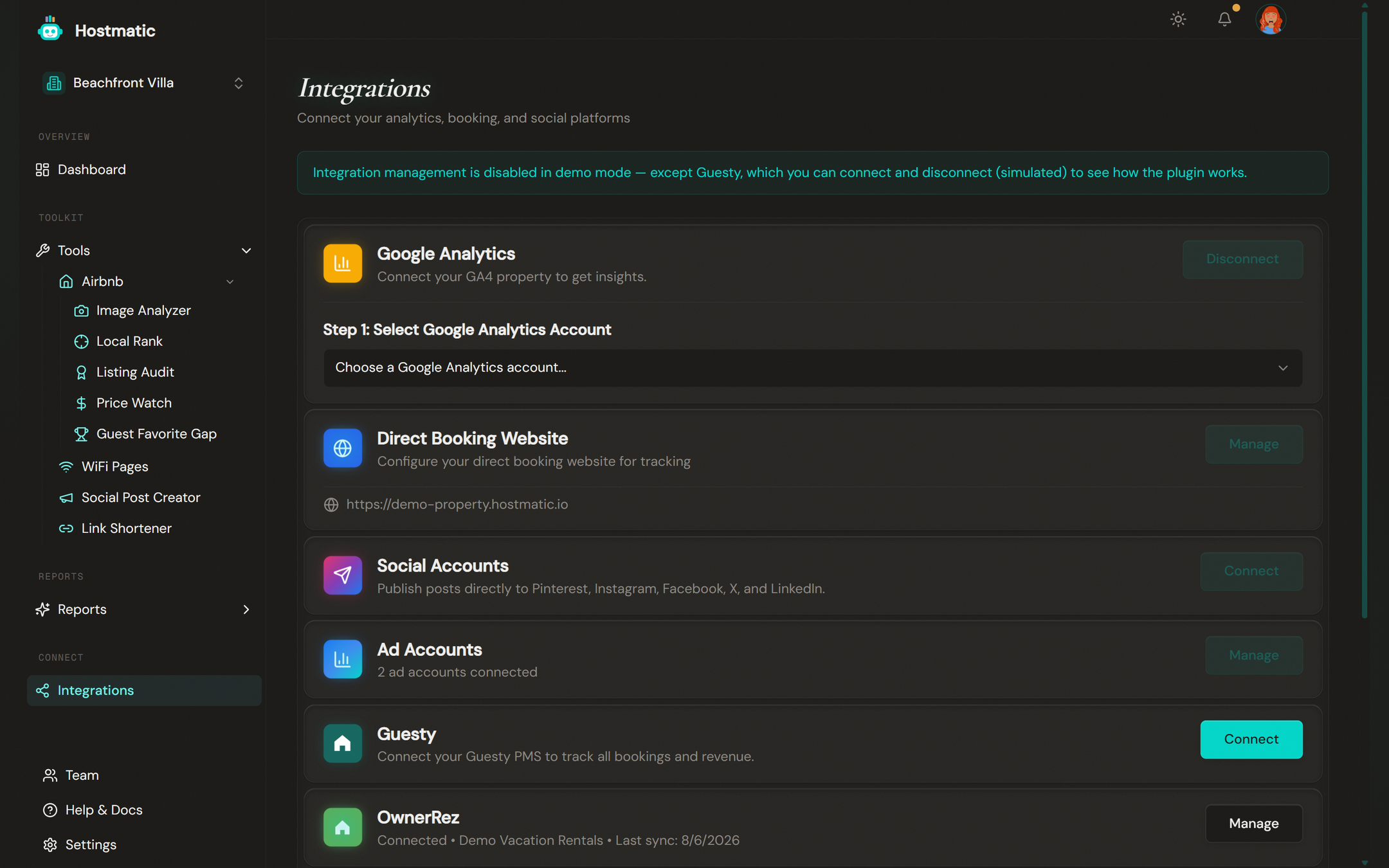
- Go to Integrations in the sidebar
- Click Connect next to Guesty
- Enter your Guesty Client ID and Client Secret
- Click Connect
Getting Your Credentials
Guesty's Open API uses OAuth 2.0 — you'll need a Client ID and Client Secret, not a legacy API key.
- Log in to your Guesty dashboard
- Go to Integrations → API & Webhooks and create a new API key (this is Guesty's Open API application)
- Copy the Client ID and Client Secret it generates
- Paste both into Hostmatic
Tip: Create a dedicated Open API application for Hostmatic rather than reusing an existing one. This makes it easy to manage access and revoke if needed.
Note: Guesty limits how often new access tokens can be issued, so avoid reconnecting repeatedly in a short window. Hostmatic caches your token and refreshes it automatically.
Choose Which Listings to Track
If your Guesty account has more listings than the property you're setting up, you don't have to import them all. On your first connect, Hostmatic shows a Properties to track step so you can pick exactly which Guesty listings feed this property's bookings and analytics.
- Only the listings you select are counted in this property's revenue, ADR, and source mix — so a multi-unit or agency account doesn't dilute a single property's numbers.
- You can change the selection any time from Integrations → Guesty → Manage → Properties to track. Narrowing it re-scopes your data on the next sync.
- Your selection is remembered — if your Guesty token expires and you reconnect, Hostmatic keeps tracking the same listings without asking again.
- Each plan has a limit on how many Guesty listings a property can track; larger portfolios may need a higher plan.
Guesty and OwnerRez Are Mutually Exclusive
A property can have either Guesty or OwnerRez connected, not both — each one pulls every booking across every channel, so connecting both would double-count revenue and bookings. See OwnerRez if that's the PMS you use instead.
Link Listings to Airbnb (optional)
Under Manage → Link your listings, you can match each tracked Guesty listing to its Airbnb equivalent. This lets Hostmatic join your Guesty revenue to the right Airbnb listing for cross-channel analytics. Listings you don't have on Airbnb can be skipped.
Data Sync
After connecting, Hostmatic syncs your Guesty data automatically. Initial sync may take a few minutes depending on the number of properties and bookings.
Use the sync button on your dashboard to pull the latest data on demand.
Supported Guesty Plans
Hostmatic works with all Guesty plans that provide API access. Check with Guesty if you're unsure whether your plan includes API access.
Troubleshooting
No data after connecting
- Verify your Open API application (Client ID / Client Secret) has read permissions
- Check that your Guesty account has active listings with bookings
- Try disconnecting and reconnecting with a fresh Client ID and Client Secret
Stale data
- Click the sync button on your dashboard
- Data syncs periodically, but manual sync ensures you see the latest